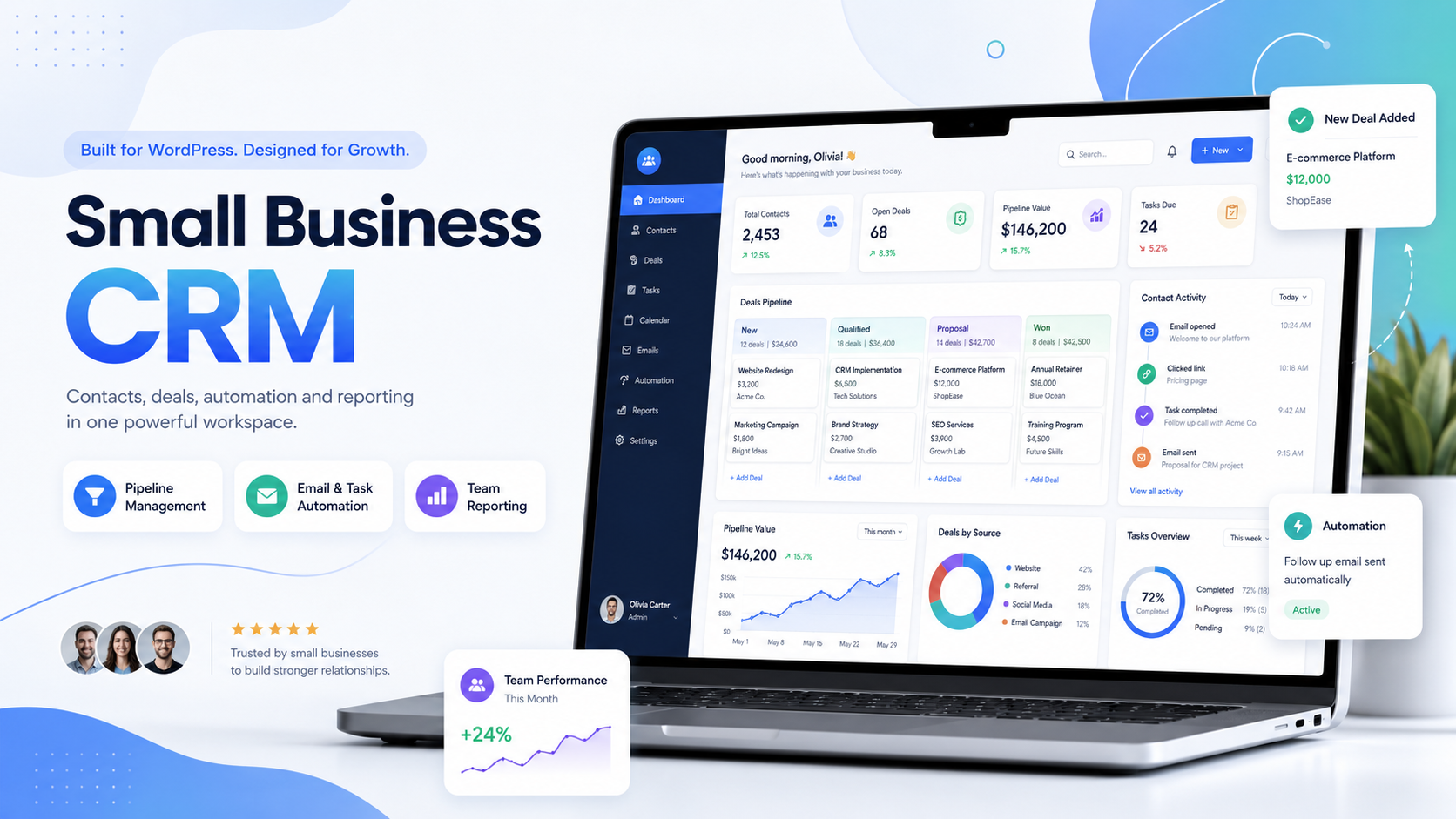
Take a structured tour of the CRM experience
Use this page as the public entry point to your configured CRM demonstration. Replace the call-to-action URL in Appearance → Customise → CRM Product Links when the demo environment is ready.
1. Add a Contact
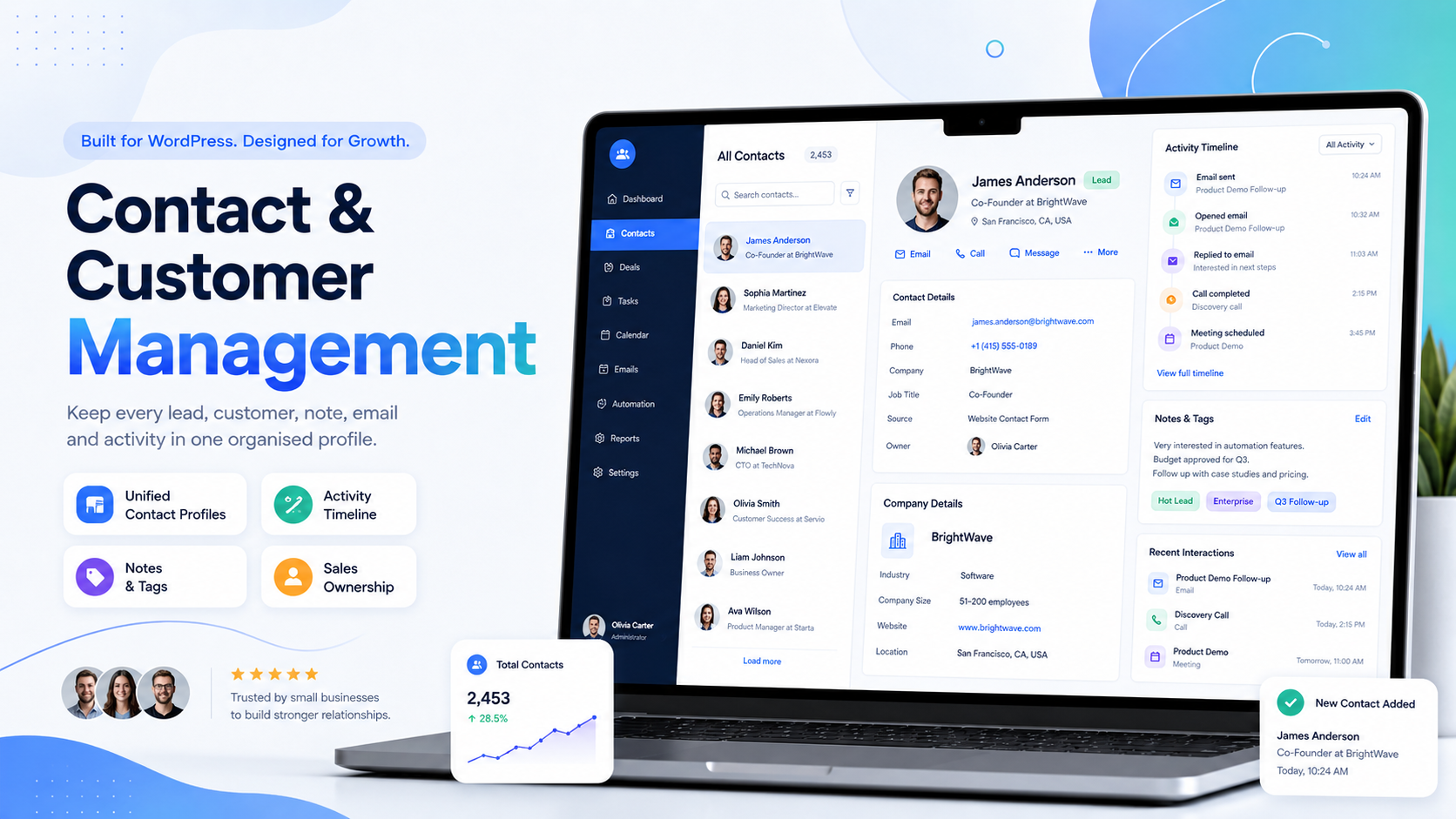
Create a customer record, add context and review the unified activity timeline.
2. Create a Deal
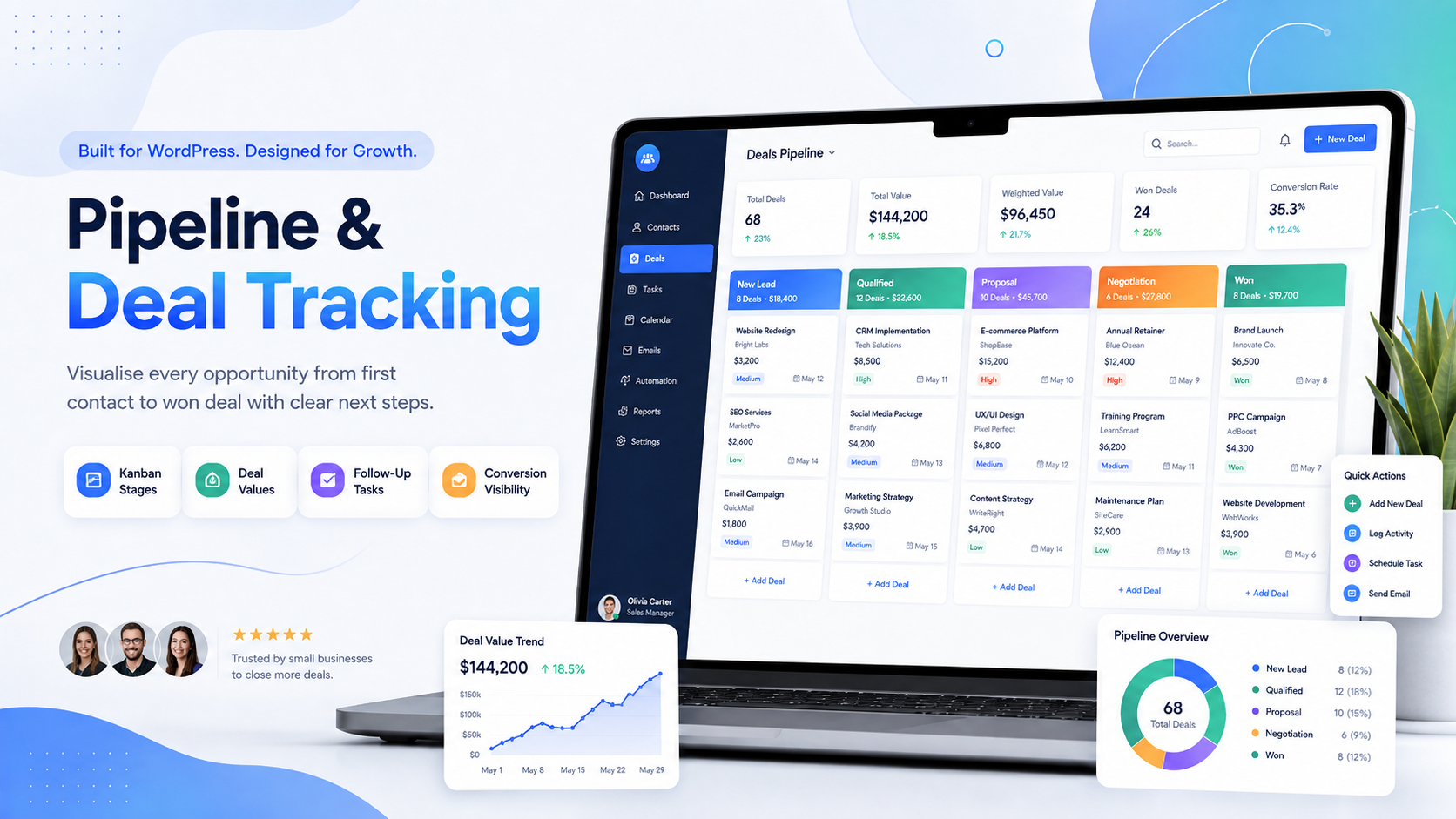
Add an opportunity, assign an owner, set value and move it through the pipeline.
3. Run Automation
Explore a trigger, workflow assignment, delayed step and action history.
4. Review Results
Open reports to see pipeline, activity, forecasts and team performance.
Show a complete customer journey, not isolated screens
A convincing product demonstration should connect the screens: capture a lead, qualify the record, create a deal, schedule work, trigger a workflow and review the resulting activity and reports.
- Start in Customer 360
- Move into Pipeline and Sales Desk
- Demonstrate a workflow and email step
- Finish with reports and Enterprise controls
Use realistic sample data without exposing real customers
Populate the demonstration with fictional companies, contacts, tasks and opportunities. Restrict the demo user to the exact CRM capabilities needed and reset sample data on a planned schedule.
- No real customer or credential data
- Dedicated demonstration user role
- Controlled outbound email and webhook settings
- Regular sample-data reset procedure
Open the configured demonstration
Request Demo AccessReady to connect this page to the working CRM demo?
Set the primary demo URL in the Customizer. Logged-in administrators with CRM installed can use the contextual dashboard button created by this theme.